Practical guide · AI video
how to make a vampire transformation video
Make a vampire transformation video from a portrait with AI. Explore a real example, a copyable prompt, practical photo and motion tips, and common questions.
Real Vampire Transformation Example
Compare the original portrait with the actual generated vampire clip. The original photo is extracted from the first frame, which contains the input image. This is the same supplied vampire example shown in our Halloween overview, examined here as a focused transformation tutorial. It is not a separate generation test; your own result will vary.
Vampire Transformation: Original Photo → Generated Video
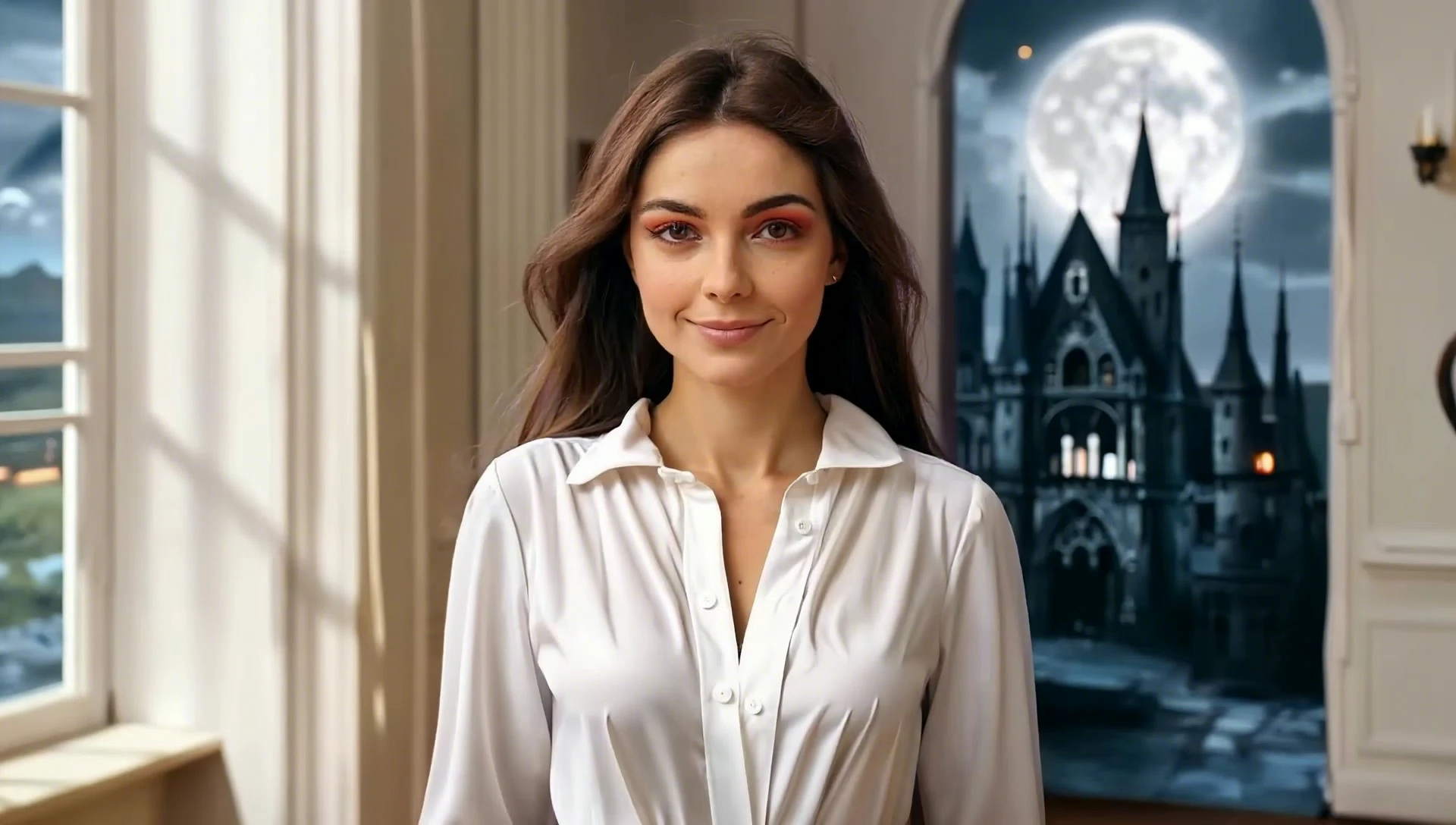
Watch how the ordinary portrait transitions into a gothic costume with bats and colored mist around the subject. Use the full clip to evaluate the transition, rather than judging only the poster image. This example shows a creative direction, not a guarantee of facial likeness or an identical result from another photo.
Step-by-Step: Make Your Vampire Transformation
1. Pick a portrait with a clear face
Use a photo you own or have permission to animate. Choose one person with visible eyes, an unobstructed face, and enough space around the head and shoulders. A waist-up portrait gives the transformation room to change clothing while keeping the face central.
For VidSparkle, upload a JPG or PNG image up to 10 MB. Avoid heavily filtered selfies and motion blur. The clearer the starting features, the easier it is to judge whether the generated character still resembles the person in your photo.
2. Select Vampire Transformation
Open Vampire Transformation. This link opens the Halloween generator and selects the vampire template. Watch the example preview before generating so you can assess the intended mood.
The template uses a built-in prompt. You do not need to paste text into the Halloween tool or manually assemble the transformation in a video editor. If you want custom creative control in another image-to-video tool, use the prompt below with your reference photo.
3. Check your credits and generate
Sign in, upload your portrait, and check the credit cost displayed near the generation button. Make sure your balance covers that amount, then click Generate Halloween Video. Generation uses credits; the current cost shown in the tool is the figure to check before starting.
The preview area shows upload, queue, and generation progress. Processing time varies with demand. Keep the page open while the result is being prepared, and review any error message before trying again.
4. Watch the full clip before downloading
Inspect the beginning, middle, and end. Look for changing eye shape, distorted hands, clothing that flickers, or a face that becomes a different person. A dramatic final frame is less useful if the transition between frames looks distracting.
Download the result when you are satisfied. Add a caption or music afterward if you want, using your preferred editor. Preview the platform’s crop before posting; an automatic crop can cut off the head or remove details that make the transformation readable.
A Copyable Vampire Transformation Prompt
Use this prompt in an image-to-video tool that accepts a reference photo and custom text. It describes a similar creative direction to the example, but is not a verified record of the prompt used to generate that clip. VidSparkle’s Halloween tool uses its preset template instead of a custom prompt field.
Copyable prompt
Create a cinematic vampire transformation from the reference portrait. Keep the person recognizable and the face composition stable where possible. Begin with the original appearance, then gradually introduce elegant gothic clothing, subtle crimson lighting, drifting mist, and a few bats behind the subject. Use one gentle head movement, coherent facial features, and natural anatomy. Keep the camera steady and the subject clearly visible. End on a composed vampire portrait. No cuts, text, logos, gore, or violent imagery.
Start with this single transformation before adding more action. A head turn, flying bats, a camera orbit, and a costume change all competing in a short clip can make it harder to understand the result.
Adjust the intensity
For a restrained version, replace the transformation sentence with: “Keep the original clothing and facial features; introduce only soft crimson highlights and light background mist.” For a more theatrical version, emphasize gothic clothing and stronger background lighting while keeping the face visible.
These are prompt suggestions, not guaranteed controls. Model behavior varies. If your chosen tool has motion or duration settings, change one setting at a time and compare the output before adding more instructions.
Practical Tips for a Cleaner Transformation
Keep the camera and face stable
A steady camera helps viewers follow the change from ordinary portrait to vampire. In a custom prompt, ask for stable framing and one small movement. If the face drifts, simplify the action rather than adding a longer list of conflicting demands.
Let the background establish the mood
Mist, moonlight, and distant bats can communicate Halloween without covering the face. Keep smoke behind the subject where possible. Heavy foreground effects may look dramatic in a still image but make the person harder to recognize during playback.
Leave space for the costume
Avoid cropping tightly at the forehead or chin. A little room around the shoulders lets clothing changes read clearly. Use a composition that already works as a portrait; AI animation cannot reliably rescue every awkward crop.
Review continuity, not just the final look
Compare the generated clip with the input photo. Do the eyes stay aligned? Does the hairstyle remain coherent? Do costume details change smoothly? Pause at several points, then play at normal speed. A flaw that is barely visible in one frame may become obvious when it flickers.
Diagnose one issue at a time
If the result disappoints, choose the biggest issue first. Try a clearer photo for poor likeness, a simpler background for clutter, or less movement in a custom prompt for unstable anatomy. With VidSparkle’s preset, try a different source portrait. Repeating generation may use additional credits, so check the cost before each attempt.
Frequently Asked Questions
Can I make a vampire transformation without editing skills?
Yes. Upload a portrait and select the Vampire Transformation template. The tool generates the animation. Manual editing is optional for captions, music, or trimming after download.
Will the video keep my face exactly the same?
An exact likeness is not guaranteed. AI may change facial features, hair, clothing, or other details. Start with a clear, well-lit photo and inspect the full result before sharing it.
Can I use a group photo?
For this tutorial, a single prominent person is the clearest starting point. A group photo makes it less obvious which person should transform and gives the model more faces to interpret.
Is vampire transformation video generation free?
Generation uses credits. Check the current cost in the generator and your available balance before starting. Visit pricing for the available plans.
How long does it take?
There is no fixed completion time. Demand affects processing. The generator displays progress while the photo is uploaded and the video is queued or generated.
What should I do if the transformation looks wrong?
Review whether the source face is clear and the framing leaves enough room. Try a simpler portrait. In a tool with custom prompts, reduce movement and competing effects. Check any reported error before submitting another generation.
Try Your Own Vampire Transformation
Try Vampire Transformation → with a portrait you like. For other seasonal ideas, read the photo-to-Halloween-video guide, which also covers Witch Transformation and Halloween Pet.