Practical guide · AI video
How to Turn a Photo into a Halloween Video with AI (2026 Guide)
Turn a portrait or pet photo into a Halloween video: real before-and-after examples, a step-by-step guide, and three copyable AI prompts.
Real Halloween Video Examples
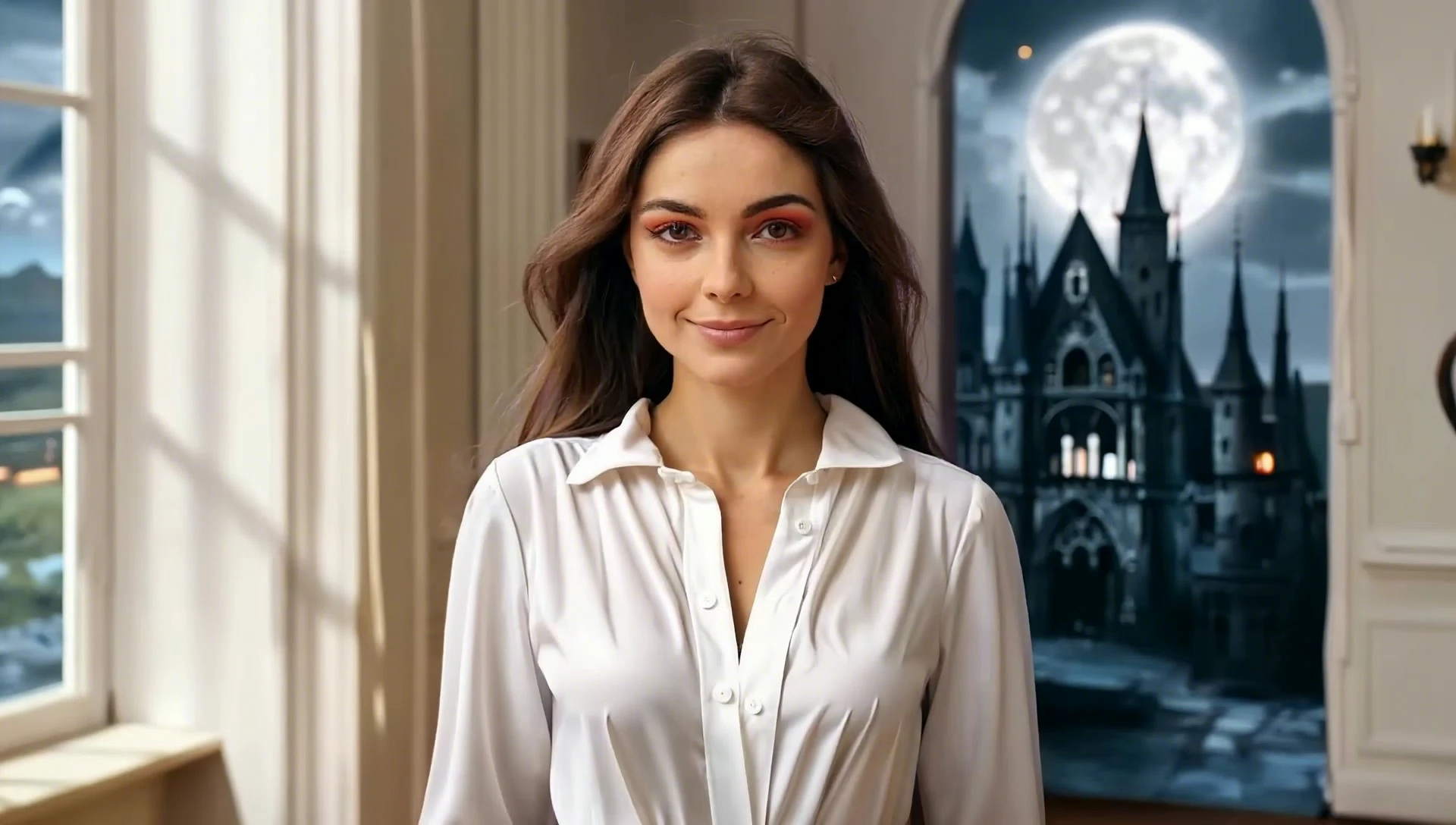
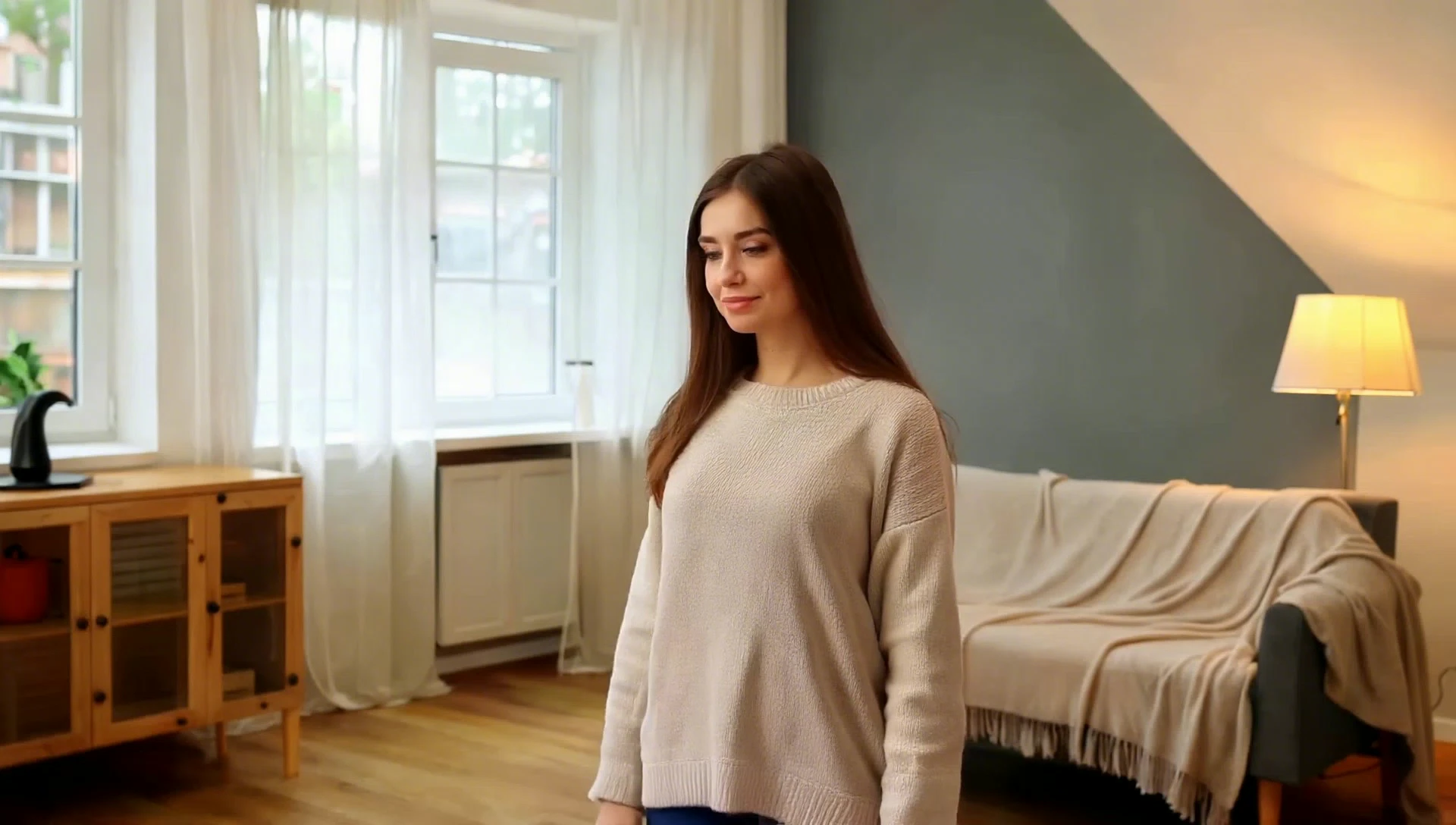
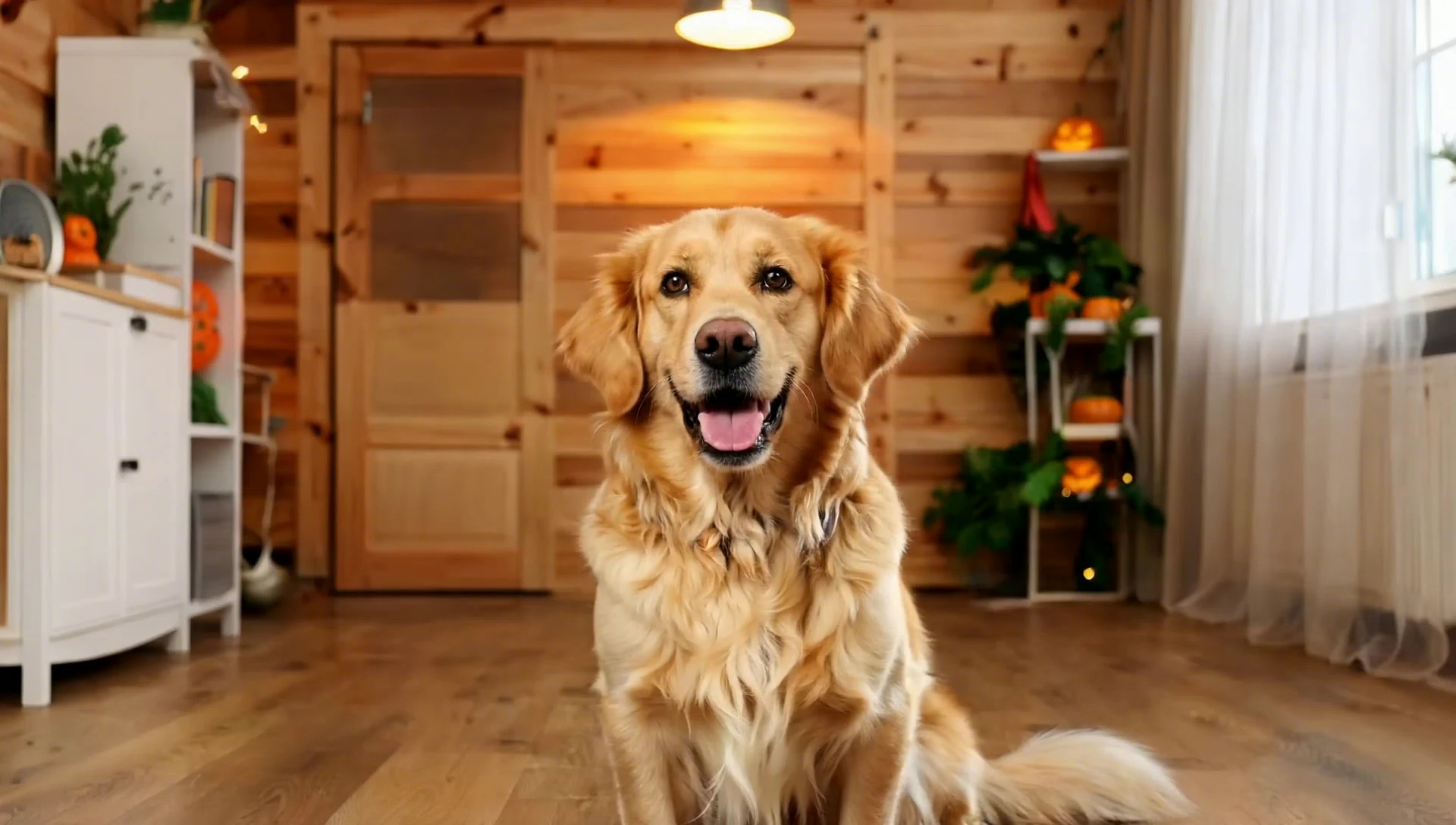
Compare the original photo with the actual generated clip for each effect. The original images below are extracted from the videos’ first frames, which contain the input photos. These are real video examples, not illustrated mockups; your own result will vary.
Vampire Transformation: Original Photo → Generated Video
Witch Transformation: Original Photo → Generated Video
Halloween Pet: Original Photo → Generated Video
Step-by-Step: Make a Halloween Video from a Photo
1. Choose your starting photo
Start with a clear portrait or a pet photo you own or have permission to use. In VidSparkle, upload a JPG or PNG image up to 10 MB. For a portrait transformation, choose a picture where the face is easy to see. For Halloween Pet, use a photo that shows your pet’s face and distinctive markings.
The photo supplies the starting composition; the effect supplies the scene and movement. A crowded background or a partly hidden face gives the model more details to interpret. Start simple, then compare the output with your input before trying another photo.
2. Choose a Halloween effect
Open the AI Halloween Video Generator and choose Vampire Transformation, Witch Transformation, or Halloween Pet. Selecting a template shows its example video. Watch that preview to decide whether you want a gothic portrait, a magical witch scene, or a cozy pet animation.
VidSparkle uses preset prompts for these effects, so you do not need to write one. If you prefer a tool with custom image-to-video prompts, use the examples below as starting points. Those prompts describe similar creative directions; they are not a verified record of the prompts used to make the example videos.
3. Check the credit cost and generate
Sign in and check the credit cost displayed beside the generation controls. Video generation uses credits; make sure your balance covers the cost shown before starting. Upload your photo, select the effect, and click Generate Halloween Video.
Keep the page open while the preview area shows upload, queue, and generation progress. Completion time varies with demand. Avoid promising yourself a fixed turnaround when preparing a post for a particular event.
4. Review and download
Play the finished clip before downloading. Check the face, hands, clothing, and background; for pets, check the eyes, fur, and paws. AI can change details even when the overall subject remains recognizable. If the result looks distracting, try a clearer photo or a simpler composition.
Download the video when you are happy with it. You can then add your own caption or music in a separate editor and share it on TikTok, Instagram, or with friends. Check the destination platform’s crop before publishing so the face stays in view.
Three Halloween Effects and Copyable Prompts
These prompts work as starting points in an image-to-video tool that accepts a reference image and custom text. Upload your photo along with the prompt. Different models interpret instructions differently, so do not expect an exact match to the examples. VidSparkle’s Halloween page uses its built-in templates instead of a custom prompt field.
Vampire Transformation
Use a clear portrait for a gothic Halloween scene. Aim for a gradual transformation with subtle movement rather than several dramatic actions at once. Mist, crimson lighting, and background bats can establish the mood without hiding the subject.
Copyable prompt
Animate the person in the reference portrait into a cinematic Halloween vampire scene. Keep the face recognizable and the framing stable where possible. Introduce elegant dark clothing, soft crimson lighting, drifting mist, and a few bats behind the subject. Use a subtle head movement and a gradual transformation. Keep anatomy coherent. No text, logos, gore, or violent imagery.
If the face changes too much, reduce the transformation instructions and emphasize a stable face and camera. Treat likeness as something to review, rather than a guaranteed result.
Witch Transformation
A witch scene suits a portrait with some space above the head and around the shoulders. Keep the gesture small, and use pumpkins or magical particles as supporting details. Too many moving objects can compete with the person you want viewers to notice.
Copyable prompt
Animate the person in the reference photo in a whimsical Halloween witch scene. Preserve recognizable facial features where possible. Add a stylish witch hat, softly glowing pumpkins in the background, and gentle magical sparkles. The subject makes one small natural gesture. Use a steady camera, smooth motion, consistent hands, and warm cinematic lighting. No text, logos, gore, or violent imagery.
Halloween Pet
Choose a photo with visible eyes and clear fur markings. A gentle head movement or blink is a useful starting point for a cozy pet video. Keep accessories modest so the pet’s face remains the focus.
Copyable prompt
Animate the pet in the reference photo in a cozy moonlit Halloween scene. Keep its species, fur markings, and recognizable appearance consistent where possible. Add a festive pumpkin accessory, glowing pumpkins, and soft magical sparkles. Use small natural movements, realistic animal anatomy, and a steady camera. Keep the mood playful and family-friendly. No text, logos, gore, or violent imagery.
Best Photo Tips
- Make the subject easy to identify. Start with one prominent person or pet rather than a group shot.
- Use even lighting. Avoid deep shadows across the eyes or a bright light directly behind the subject.
- Keep details visible. Remove heavy filters where possible and avoid images with motion blur or large face coverings.
- Leave breathing room. Space around the head helps accommodate a hat or transformation without cramped framing.
- Change one thing at a time. If an output disappoints, try a different photo before changing every prompt instruction. Comparing one change makes the next decision easier.
Frequently Asked Questions
Can I turn a photo into a Halloween video without editing skills?
Yes. VidSparkle’s Halloween templates handle the animation after you upload a photo and select an effect. Manual editing is optional if you want to add music, captions, or trim the downloaded result.
Is Halloween video generation free?
Generation uses credits. Check the current cost shown in the generator and your available balance before starting. See pricing for the available plans rather than assuming every generation is free.
Can I use a pet photo?
Yes. Choose Halloween Pet and upload a clear JPG or PNG photo up to 10 MB. Review the finished clip for changes to your pet’s face, markings, or anatomy.
Will the generated video preserve my face exactly?
An exact likeness is not guaranteed. AI effects may alter facial features or other details. Use a clear portrait and review the output before sharing it.
Can I use these prompts outside VidSparkle?
Yes. Copy a prompt into an image-to-video tool that supports reference photos and custom instructions. Its output, upload limits, pricing, and available settings will depend on that tool.
How long does generation take?
There is no fixed completion time. Demand affects processing, and the generator shows progress while your video is uploading, queued, or being generated.
Create Your Halloween Video
Start with a photo you like, choose one effect, and review the result. Try VidSparkle Halloween Video Generator → or use the prompts above to explore the same ideas in your preferred image-to-video tool.