Practical guide · AI video
how to make a halloween pet video
Turn your pet photo into a Halloween video with AI: a real before-and-after example, a copyable prompt, photo and motion tips, and answers to common questions.
Real Halloween Pet Video Example
Compare the original pet photo with the actual generated Halloween clip. The original photo is extracted from the first frame, which contains the input image. This is the same supplied pet example shown in our Halloween overview, presented here with a focused pet tutorial. It is not a separate generation test; your own result will vary.
Halloween Pet: Original Photo → Generated Video
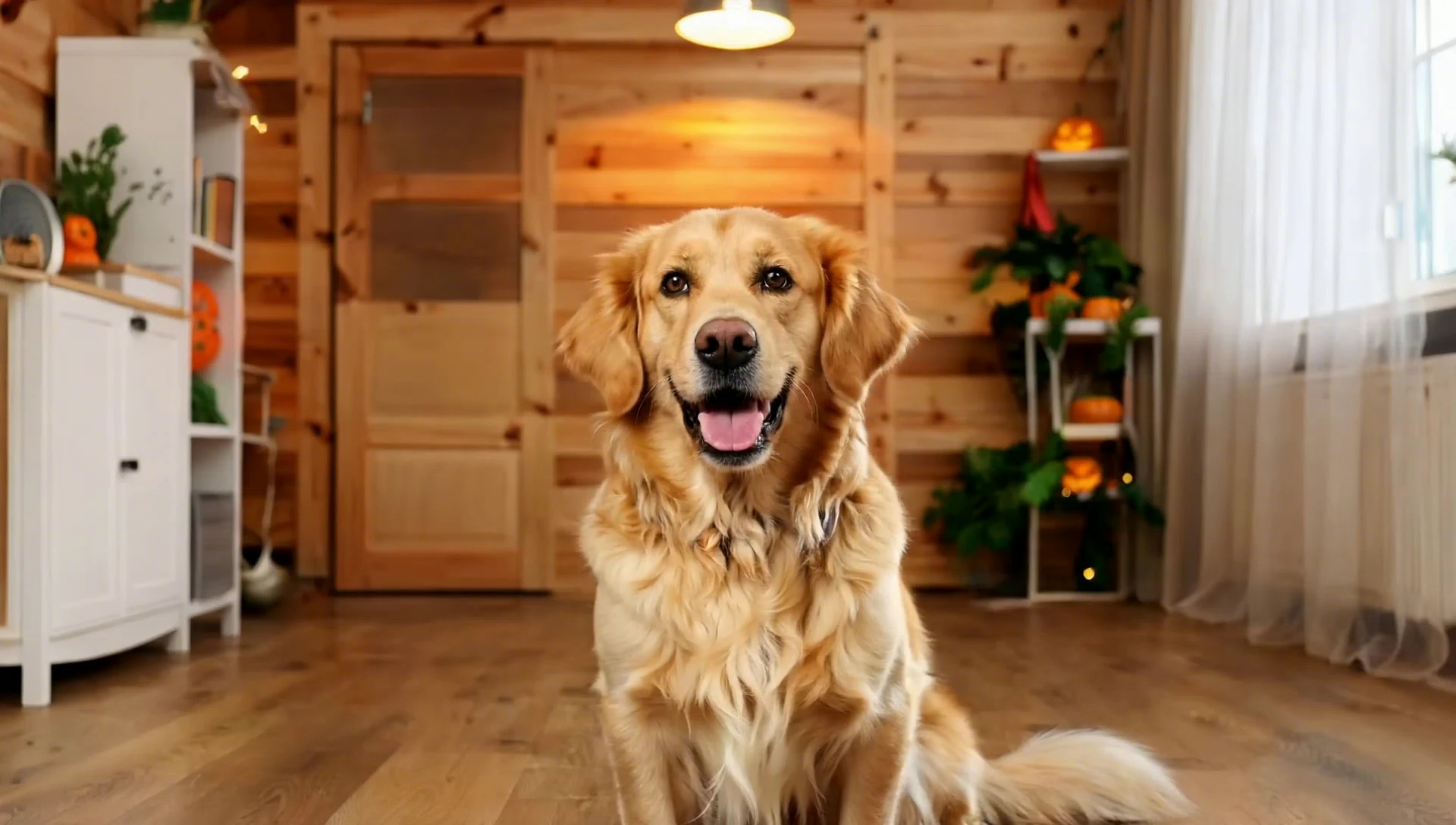
Play the full clip to see how the photo becomes a Halloween animation. Compare the pet’s face, markings, and movement with the original image. Look at the transition as well as the finished scene; the example shows a creative direction, not a guarantee of exact likeness or an identical result from another photo.
Step-by-Step: Make a Halloween Pet Video
1. Choose a photo that looks like your pet
Start with a photo you own or have permission to use. Pick one pet with visible eyes, a clear face, and recognizable fur markings. Leave room around the ears and body so Halloween accessories do not crowd the composition. A simple background helps keep attention on your companion.
In VidSparkle, upload a JPG or PNG image up to 10 MB. Avoid blurry action shots and filters that obscure the coat. You do not need to put a costume on your pet for this workflow: the animation starts from the photo, and the Halloween template supplies the festive scene.
2. Select the Halloween Pet template
Open Halloween Pet. The link opens the generator with the pet template selected. Watch its preview to assess the mood before uploading your own image.
The Halloween tool uses a built-in prompt, so you do not need to describe the scene or assemble the animation manually. For a tool that accepts custom image-to-video instructions, the prompt below provides another way to explore the idea with your reference photo.
3. Check credits and generate
Sign in and check the credit cost displayed near the generation button. Make sure your balance covers the amount shown, then upload your photo and click Generate Halloween Video with Halloween Pet selected.
The preview area shows upload, queue, and generation progress. Processing time varies with demand, so leave time to review the output before a planned seasonal post. If an error appears, read the message before submitting another attempt.
4. Review the pet and download
Watch the full clip rather than judging only its final frame. Check the eyes, ears, muzzle, coat pattern, and paws. Make sure the movement reads naturally and any added accessory does not obscure the face. AI can change these details even when the result looks broadly similar to your pet.
Download the video when you are happy with it. You can add a caption or music in a separate editor afterward. Preview the destination platform’s crop before posting so the ears, face, and Halloween details remain visible.
A Copyable Halloween Pet Prompt
Use this prompt in an image-to-video tool that supports a reference photo and custom text. Upload the pet photo along with it. This describes a similar creative direction to the example; it is not a verified record of the prompt used to make that clip. VidSparkle’s Halloween page uses its preset template instead of a custom prompt field.
Copyable prompt
Animate the pet in the reference photo in a cozy Halloween scene. Keep the species, face shape, fur color, and distinctive markings consistent where possible. Add softly glowing pumpkins, gentle magical sparkles, and a moonlit background. Include one subtle natural movement, such as a blink or a small head turn. If adding a festive accessory, keep it small and leave the eyes and ears visible. Use realistic animal anatomy and a steady camera. Keep the mood playful and family-friendly. No text, logos, gore, or frightening action.
Make the scene simpler
If accessories distort the pet’s head, remove the accessory instruction and keep the Halloween details in the background. Try: “Leave the pet’s appearance unchanged; add only softly glowing pumpkins and a few drifting sparkles behind it.”
If movement becomes unstable, ask for a gentle blink with an otherwise still pose. In a custom-prompt tool, change one instruction at a time. Different models interpret text differently, so these suggestions cannot guarantee the same appearance or movement across tools.
Practical Tips for Pet Photos and Motion
Keep eyes and markings visible
A recognizable pet video begins with recognizable details. Choose a photo where both the face and important markings are easy to see. Avoid strong shadows over the eyes or a blanket covering most of the body. Compare the output with the input rather than assuming the model preserved every patch of fur.
Use one clear subject
Start with one pet instead of a group. Multiple animals give the model more faces and bodies to interpret and make it harder to tell which one should move. If your photo includes another pet, choose a different shot or crop a copy while retaining enough space around the main subject.
Favor small movements
A blink, slight head turn, or subtle breathing motion can be enough to bring the photo to life. Running, jumping, and spinning introduce more opportunities for unstable paws or changing proportions. Begin with a restrained animation before requesting a more elaborate action in a tool with custom controls.
Keep Halloween details around the pet
Pumpkins and soft lights can establish the theme without changing your companion’s face. In custom prompts, favor background decorations over large masks or oversized hats. If an accessory appears in a generated clip, check that it stays coherent throughout playback.
Review the whole body
Pause at several points and inspect the legs, tail, and ears. Then replay at normal speed to look for flickering details. If the result disappoints, identify the biggest issue first. A clearer source image may help with likeness; simpler movement may help with unstable anatomy. Each new generation may use credits, so check the displayed cost before trying again.
Frequently Asked Questions
Can I make a Halloween video of a cat or dog?
You can upload a cat or dog photo and try Halloween Pet. Use a clear image with one prominent animal and review the generated result. The example is an illustration of the template’s direction, not proof that every species or pose will produce the same quality.
Do I need to dress my pet in a costume?
No. This workflow starts with a photo and adds the Halloween scene through AI animation. An ordinary photo with a clear face is a suitable starting point.
Will the video keep my pet’s markings exactly?
Exact consistency is not guaranteed. AI may change fur patterns, facial details, or body proportions. Compare the whole clip with your input before sharing it.
Can I animate several pets together?
For this tutorial, start with one pet. Multiple animals make the intended subject and movement less clear. A separate video for each pet is an easier first experiment.
Is Halloween Pet generation free?
Generation uses credits. Check the current amount displayed in the generator and your available balance before starting. See pricing for available plans.
How long does generation take?
There is no fixed completion time. Processing varies with demand, and the generator shows upload, queue, and generation progress while you wait.
Can I copy the prompt into another tool?
Yes, if that tool supports reference images and custom prompts. Its settings, upload limits, cost, and output will depend on the tool you choose.
Make Your Pet’s Halloween Video
Try Halloween Pet → with a favorite photo. For the wider set of seasonal effects, read the photo-to-Halloween-video guide. For a person’s portrait, explore the vampire transformation tutorial.